Last month, a neighbor knocked on my door holding his brand-new Taotronics earbuds and a puzzled look on his face. He'd charged them overnight, opened the case, and his phone showed absolutely nothing in the Bluetooth list. The fix was a two-second button hold he hadn't tried yet. If you're dealing with that same blank screen, this guide on how to pair Taotronics headphones will walk you through every device type — phone, Windows PC, and Mac — so you can get connected in under two minutes. Understanding this process is part of something bigger, too: how headphones shape your daily routine, from commuting to focus sessions to workouts.
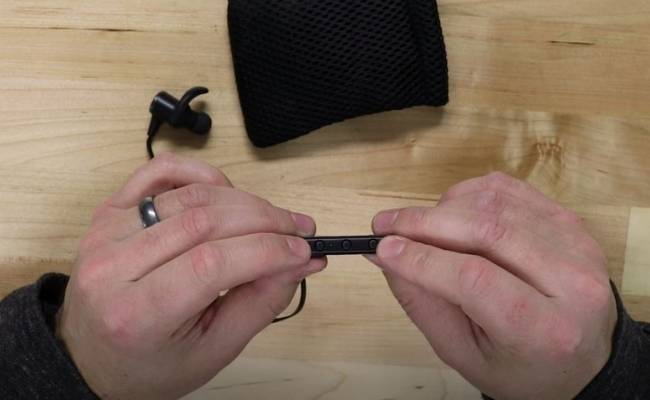
Taotronics produces a wide range of Bluetooth audio products — over-ear headphones like the popular TT-BH07, on-ear models, and true wireless earbuds in the SoundLiberty line. Each type enters pairing mode slightly differently. Some require a long press of the power button. True wireless earbuds pair automatically the first time you pull them from the case. But the core logic is the same across all of them: power on, enter pairing mode, select on your device.
If you're still deciding between wired and wireless audio, our wired vs wireless headphones comparison breaks down the real-world tradeoffs in plain terms. And if you're in the market for something new after reading this guide, check our headphone buying guides for hand-picked recommendations at every price point. But if you're already holding a pair of Taotronics — let's get them connected.
Contents
- Taotronics Models Compared: Which Pairing Method Applies to You
- Everything You Need Before You Start Pairing
- How to Pair Taotronics Headphones: Step-by-Step on Every Device
- When to Force Pair vs. When to Let Auto-Connect Handle It
- When Pairing Fails: How to Fix the Most Common Problems
- Keeping Your Taotronics Connection Reliable Long-Term
- Frequently Asked Questions
Taotronics Models Compared: Which Pairing Method Applies to You
Before you start pressing buttons at random, it pays to know exactly which category your headphones fall into. Taotronics sells three main types, and each one triggers pairing mode differently. Starting with the right method shaves minutes off the process and prevents the frustration of thinking something is broken when it isn't.
Over-Ear vs. True Wireless Pairing Behavior
Over-ear and on-ear models — like the TT-BH07, TT-BH085, and TT-BH090 — require you to manually trigger pairing mode by holding the power button for 3–5 seconds until you see alternating blue and white LED flashes. Those flashing lights are your confirmation that the headphones are broadcasting and waiting to be found.
True wireless earbuds in the SoundLiberty line work differently. Remove them from the charging case for the first time and they enter pairing mode automatically. On later uses, you may need to hold the touch control or button on both earbuds for about 3 seconds. Wired-optional models that support both a 3.5mm cable and Bluetooth behave like over-ears when you're using Bluetooth mode.
Key Differences by Series
| Model Series | Type | Pairing Trigger | LED Signal in Pairing Mode | Paired Device Memory |
|---|---|---|---|---|
| TT-BH07 / TT-BH07S | Over-ear | Hold power 3–5 sec | Blue/white alternating | Up to 2 devices |
| TT-BH085 / TT-BH090 (ANC) | Over-ear | Hold power 3–5 sec | Blue/white alternating | Up to 2 devices |
| TT-BH22 / TT-BH26 | On-ear | Hold power 3–5 sec | Blue/white alternating | Up to 2 devices |
| SoundLiberty 53 / 79 / 94 | True wireless earbuds | Auto on first remove from case; hold 3 sec after that | Rapid white flash | Up to 2 devices |
| SoundLiberty 104 / 110 | True wireless earbuds | Auto on first remove from case; hold 3 sec after that | Rapid white flash | Up to 8 devices (model dependent) |
If your model isn't listed above, look at the LED when you hold the power button. Alternating blue and white flashes always mean pairing mode is active. A steady or slowly pulsing single color means the headphones are on but not broadcasting for new connections.
Everything You Need Before You Start Pairing
Most pairing failures happen before a single button is pressed. A quick 60-second check of these items will eliminate the majority of problems before they start. Don't skip this — it's worth the extra minute.
Required Items and Checklist
- Charged headphones — At least 20% battery. Below that, some models refuse to enter pairing mode entirely or behave erratically with LED patterns that look like hardware failures but aren't.
- A Bluetooth-enabled device — Phone, tablet, laptop, or desktop with an internal or USB Bluetooth adapter. Most laptops made in the last decade have this built in.
- Close proximity during first pair — Stay within 3 feet (about 1 meter) of your device during the initial pairing handshake. Long-distance pairing fails more often than people expect, even though normal operational range is 30+ feet.
- Cleared pairing history if re-pairing — If these headphones have been used before and you're adding a new device, you may need to either disconnect from the old device or manually clear the memory. More on that in the troubleshooting and reset sections below.
Getting Your Headphones Ready
For over-ear models: charge fully via the included USB cable before first use. Press and hold the power button for 3–5 seconds. Release when you see the blue and white LEDs alternate. Most models will also announce "pairing" through the speakers.
For true wireless earbuds: place both earbuds in the charging case and charge until the case LED turns white or green, indicating full charge. Remove both earbuds simultaneously. On first use they enter pairing mode without any button press. On later sessions, hold the earbud touch control for 3 seconds until both earbuds flash.
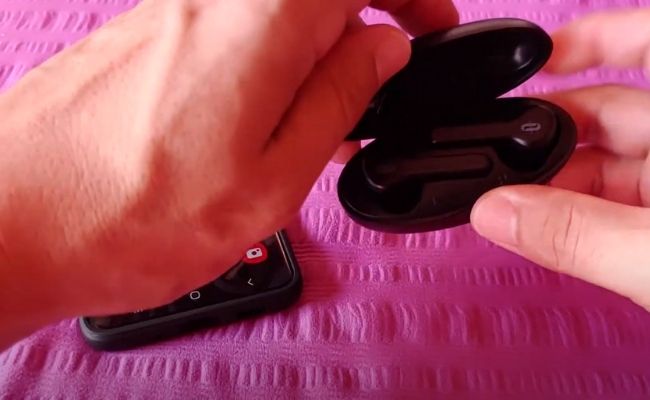
One thing many people miss: if you've connected these headphones to a different device before, they'll try to reconnect to that device first when powered on. To pair to a new device, you either need to disable Bluetooth on the old device or hold the power button longer (7–8 seconds total) to force manual pairing mode. Understanding how audio connectors work in general is useful context too — our guide to headphone jacks and plugs covers the physical side of audio connections if you want a complete picture.
Tip: Always charge your Taotronics headphones to at least 50% before attempting a first-time pair — low battery causes inconsistent LED behavior that looks like a hardware fault but is almost always just a power issue.
How to Pair Taotronics Headphones: Step-by-Step on Every Device
Here's where the actual work happens. The steps below cover how to pair Taotronics headphones across the three most common device types. Follow the section for your specific device exactly, and you'll have audio playing in under two minutes.
Pairing with Android or iPhone
Phone pairing is the most common scenario and the simplest of the three. The steps are nearly identical on Android and iOS.
- Power on your headphones and hold the button until the blue/white LED alternates (pairing mode active).
- On your phone, open Settings → Bluetooth and toggle Bluetooth on if it isn't already.
- Wait 10–15 seconds for the scan to populate the available devices list.
- Find your Taotronics model in the list — it usually appears as "TaoTronics SoundSurge," "TaoTronics SoundLiberty," or a similar name followed by model letters.
- Tap the name. You'll hear a confirmation tone in the headphones, and the LED will switch from the fast alternating flash to a slow single blue pulse — that means you're connected.
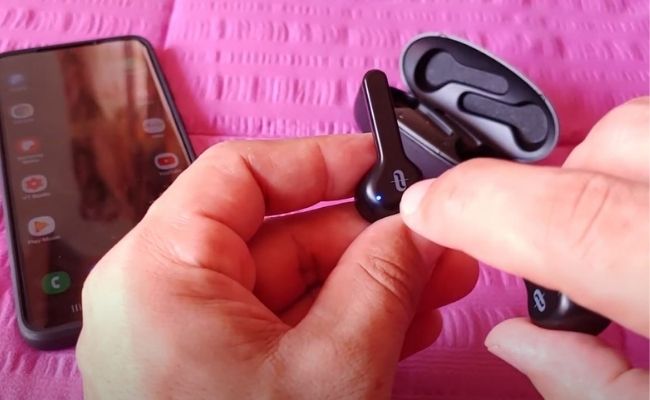
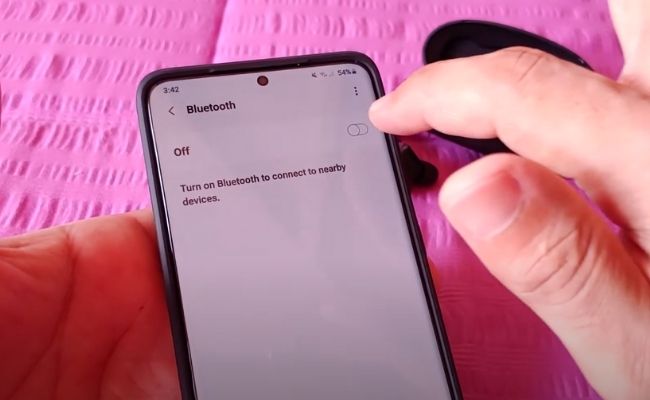
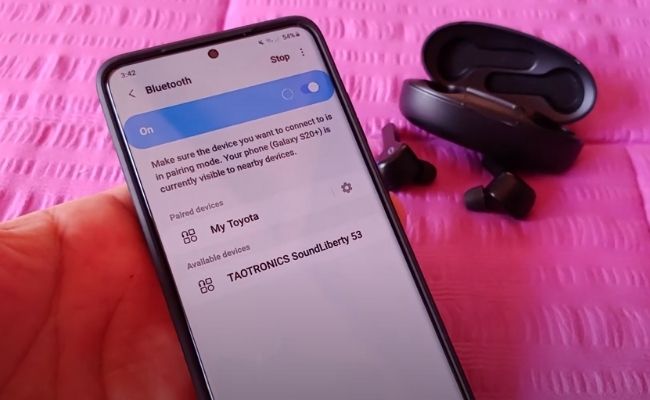
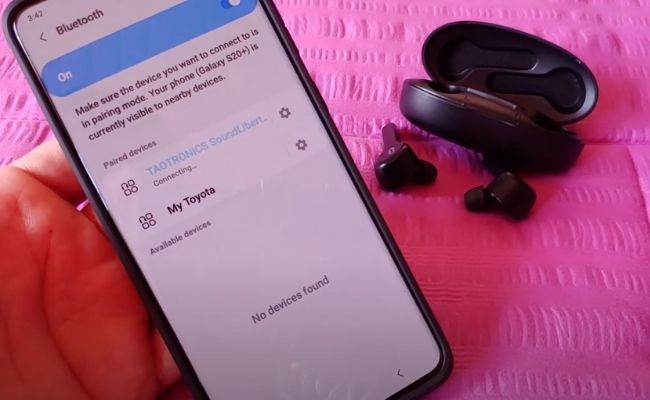
On iPhone, you may occasionally be prompted to confirm a pairing PIN (a 4-digit code). The default PIN for all Taotronics models is 0000. Most modern phones skip this step entirely, but if a code prompt appears, 0000 always works.
Pairing with Windows PC
Windows handles Bluetooth slightly differently depending on whether you're on Windows 10 or 11, but the core path is the same on both.
- Put your headphones into pairing mode (blue/white LED alternating).
- Click the Start menu and open Settings (the gear icon).
- Navigate to Devices on Windows 10, or Bluetooth & devices on Windows 11.
- Confirm Bluetooth is switched on, then click Add Bluetooth or other device.
- Choose Bluetooth from the device type options that appear.
- Wait for your Taotronics model to appear and click it to complete the connection.
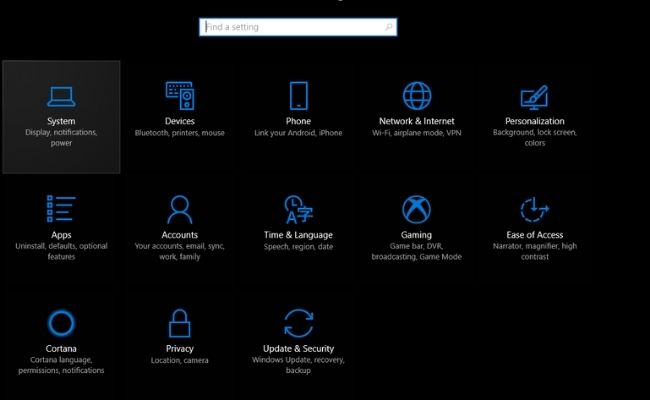
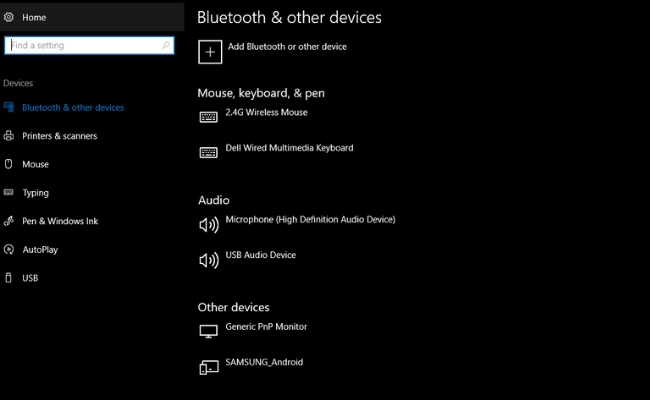
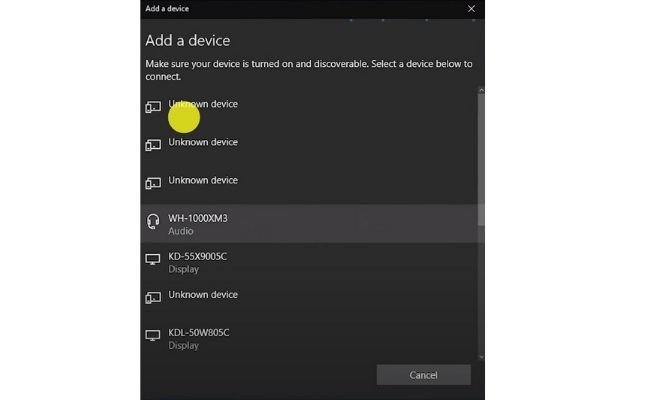
If you plan to use your Taotronics headphones as a microphone on your PC as well as for audio playback, read our step-by-step guide on how to use headphones as a mic on PC — it covers the specific audio routing settings in Windows that trip people up after a successful Bluetooth pair.
Pairing with Mac
Mac's Bluetooth workflow is cleaner than Windows but slightly tucked away if you haven't used it before.
- Put your headphones into pairing mode.
- Click the Bluetooth icon in the top menu bar (the stylized "B" symbol). If you don't see it, go to System Preferences → Bluetooth and enable "Show Bluetooth in menu bar."
- Click Open Bluetooth Preferences from the dropdown menu.
- Verify Bluetooth is turned on. Your Taotronics headphones should appear in the device list within 10–15 seconds.
- Click Connect next to your headphone model name.
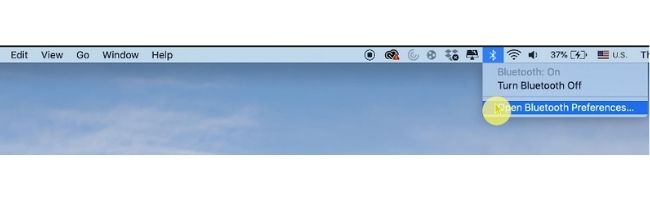
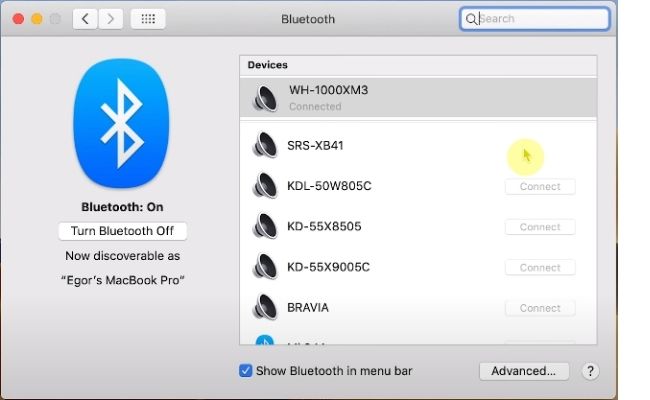
On macOS Ventura and later, the path changed slightly: go to System Settings → Bluetooth instead of System Preferences. Everything else works the same. If your Mac doesn't show the headphones within 20 seconds, power the headphones off and back into pairing mode — first attempts sometimes time out faster on Mac than on other platforms.
When to Force Pair vs. When to Let Auto-Connect Handle It
Here's something most pairing guides completely skip. Not every connection problem requires you to go through the full pairing process again. Knowing the difference saves you a lot of unnecessary button-mashing and prevents accidentally wiping a device from memory.
When to Trigger Pairing Mode Manually
You need to manually force pairing mode in these specific situations:
- First-time setup — The headphones have never been connected to this particular device before.
- Switching to a new device — Your headphones remember your old phone and keep trying to connect to it. Manual pairing forces them to register the new device instead.
- After a factory reset — All memory is wiped, so you start completely fresh.
- When the previously paired device isn't nearby — If the headphones keep reconnecting to a laptop left in another room, triggering manual pairing gives your current device priority.
- When pairing memory is full — Most models store 2–8 paired devices. Once full, adding a new device requires you to enter pairing mode, which overwrites the oldest entry.
Warning: Don't force re-pair if your headphones simply disconnected mid-session — toggling Bluetooth off and on again on your phone almost always reconnects automatically without affecting your saved pairing data.
When Auto-Connect Does the Job
Auto-connect handles the vast majority of day-to-day use without you touching a single setting. Once paired, your Taotronics headphones scan for stored devices every time you power them on, and connect to the most recently used one automatically.
Let auto-connect do its job when:
- You use the same device every day and nothing has changed on either side.
- The headphones dropped connection briefly due to temporary range or interference.
- You powered them off manually and are just switching them back on.
- Your phone's Bluetooth toggled off momentarily — just turn it back on.
In these cases, just turn on the headphones and wait 5–10 seconds. No menus, no holds, no Settings screens. They'll reconnect on their own. The only time auto-connect reliably fails is when a competing previously-paired device is nearby with active Bluetooth — that's when you need manual intervention.
When Pairing Fails: How to Fix the Most Common Problems
Even when you follow every step correctly, Bluetooth can be stubborn. Here are the specific issues people hit most often when trying to pair Taotronics headphones, and the exact fixes for each one.
Headphones Not Showing Up in the Device List
Your Bluetooth scan comes up empty, or the headphones flash briefly in the list and then vanish. This is the most reported issue, and it has clear causes:
- Not actually in pairing mode — A slow single-color LED flash means the headphones are on but not broadcasting. You need the rapid alternating blue/white flash. Hold the button longer.
- Battery too low — Below 10%, some models won't enter pairing mode at all. Charge for 15–20 minutes and retry.
- Already connected to another device — If your partner's phone has Bluetooth on in the same room and the headphones are already paired to it, they'll lock onto that connection. Disable Bluetooth on the other device first.
- Stale Bluetooth cache on your phone or PC — Toggle Bluetooth off, wait 10 seconds, toggle back on. This refreshes the device scan and clears ghost entries.
- Restart your device — Boring advice, but it resolves approximately 20% of Bluetooth scan failures on both Android and Windows.
Connection Drops or Won't Stay Stable
You pair successfully but audio cuts out, stutters, or the connection drops after a few seconds. These are the causes and their fixes:
- Low battery — Below 15% causes connection instability on most Taotronics models regardless of model. Keep charge above 30% for clean, uninterrupted audio.
- Radio interference — Bluetooth (a short-range wireless standard operating on the 2.4GHz band) competes with Wi-Fi routers, microwaves, and other Bluetooth devices in the same space. Move away from these sources, or switch your Wi-Fi router to a 5GHz network.
- Corrupted pairing entry — A damaged saved connection can cause ongoing drops. Clear the pairing list by holding the power button for 8–10 seconds until you see rapid red/blue LED alternation or hear an audio cue, then re-pair from scratch.
- Outdated Bluetooth drivers on Windows — Open Device Manager → Bluetooth → right-click your Bluetooth adapter → Update driver. Outdated drivers are a surprisingly common cause of post-pair instability on Windows 10.
Once your connection is solid, audio quality becomes the next priority. Our guide on how to make your headphones sound louder covers EQ and volume settings that work specifically with Bluetooth headphones and help you get the most out of the hardware you already own.
Keeping Your Taotronics Connection Reliable Long-Term
Getting paired once is the easy part. Staying connected reliably over months of daily use takes a handful of small habits. None of these are complicated, but most people skip them until something goes wrong.
Battery Care and Range Best Practices
Bluetooth connection quality tracks closely with battery health, especially as headphones age. Here's what you should do consistently:
- Don't drain the battery to zero regularly. Lithium-ion cells (the type in all Taotronics models) degrade faster at extreme charge levels. Aim to charge around 20% and unplug around 80–90% for daily use.
- Store with a 40–60% charge if you won't use the headphones for more than two weeks. Storing at full charge accelerates battery aging.
- Respect the real-world range. Bluetooth Class 2 — used in consumer headphones — has a nominal range of 10 meters (33 feet) in open air. Walls, furniture, and the human body cut that significantly. Your phone in your front jeans pocket while wearing the headphones is fine. Your phone two rooms away is not.
- Avoid leaving the headphones powered on indefinitely when not in use. Auto-power-off (available on most Taotronics models, typically after 5–10 minutes of silence) helps, but if yours doesn't have it, power them off manually.
When and How to Reset Your Headphones
A factory reset wipes all paired devices from memory and returns the headphones to out-of-box state. Do it when:
- Connection problems persist despite every other troubleshooting step.
- You're passing the headphones to someone else.
- You've accumulated too many saved devices and they keep connecting to the wrong one.
Standard reset for over-ear models: With the headphones powered on, hold the power button for 8–10 seconds until the LED flashes in a rapid pattern (usually fast red/blue alternation) or you hear a distinct audio cue that differs from the normal pairing announcement. Release, power off, then power back on. You're starting fresh — all previously paired devices are gone.
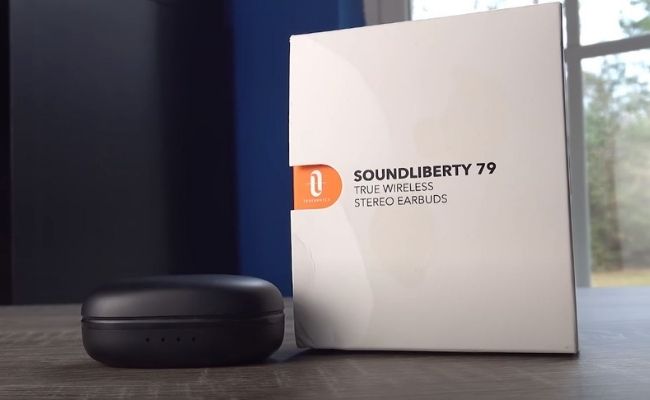
Reset for true wireless earbuds: Place both earbuds in the charging case. Press and hold the button on both earbuds simultaneously for 5–7 seconds until the case LED and earbud LEDs flash in a reset pattern. Some SoundLiberty models require pressing the case button 5 times in quick succession. If the standard hold doesn't produce a reset response, check your model's manual — Taotronics varies this behavior between firmware generations. After the reset, remove both earbuds and pair them as if it were the first time.
Frequently Asked Questions
How do I put my Taotronics headphones into pairing mode?
Hold the power button for 3–5 seconds after powering on. Release when you see blue and white LEDs alternating rapidly — that's your confirmation that the headphones are broadcasting and ready to pair. For true wireless earbuds, simply remove them from the charging case on first use. On later sessions, hold the earbud touch control for 3 seconds until both earbuds flash.
Why can't my phone find my Taotronics headphones in the Bluetooth list?
The three most common causes: the headphones are connected to a different nearby device with active Bluetooth, the battery is too low to enter pairing mode, or the LED is showing a single slow flash instead of the alternating blue/white pattern (meaning they're on but not in pairing mode). Put the headphones into active pairing mode, toggle Bluetooth off and back on on your phone, stay within 3 feet, and scan again.
Can I pair Taotronics headphones to two devices at the same time?
Most Taotronics models store multiple paired devices in memory but only actively connect to one at a time. You can switch between them by disconnecting from the first device and powering the headphones off and on near the second. A few newer SoundLiberty models support true simultaneous dual connection — check your specific model's spec sheet to confirm whether yours is one of them.
How do I fully reset my Taotronics headphones when nothing else works?
With the headphones powered on, hold the power button for 8–10 seconds. You're looking for a LED pattern or audio cue that's different from normal pairing mode — typically rapid red/blue alternation or a spoken "pairing list cleared" prompt. Power off, then power back on. This wipes all paired device memory and returns the headphones to factory defaults. You'll need to pair them again on every device from scratch.
Once you know which LED pattern means pairing mode on your specific model, connecting Taotronics headphones to any device becomes a two-minute task you'll never have to think about again.


About Simon B.
Simon here is an audiophile that loves to try out new audio equipment and loves to listen to different genres of music. Being an active student of Audio Electronics, He is more than capable of discussing different elements of headphones. A Powerful Music Can Change The Tone Of Your Heart, That Is The Real Power Of Music.
Get FREE Headset Gifts now. Or latest free Music Guide from our best collections.
Disable Ad block to get all the secrets. Once done, hit any button below