Nearly 60% of remote workers rely on their headphone microphone for daily video calls — yet most have never adjusted a single audio setting on their PC. If you're wondering how to use headphones as mic on a computer, you're closer to the solution than you think. The right settings are already built into Windows. No extra software. No expensive gear required. This guide walks you through the full seven-step process, explains the hardware you need, and covers real-world use cases so you know exactly when this setup works — and when it doesn't. For headphone recommendations that perform well as both listening and recording devices, browse our buying guides.

Not every pair of headphones works as a microphone. The key factor is your headphone's connector type. Headphones with a TRRS plug (a 3.5mm jack with four contact points — Tip, Ring, Ring, Sleeve) carry both audio output and mic input signals. A standard TRS plug (three contact points) only carries stereo audio and has no mic channel. If you're unsure which plug type you have, our detailed guide to types of headphone jacks and plugs will help you identify your connector in seconds before you start.
Once you confirm your headphones support mic input, configuring Windows is straightforward. Follow the steps below in order and you'll have working audio input in under five minutes.
Contents
What You Need Before You Start
Getting the setup right from the beginning saves you from troubleshooting later. Here's what to check before you open a single settings panel.
Know Your Connector Type
Your headphone's plug determines whether Windows will recognize it as an audio input device. Use this table to find your situation:
| Connector Type | Contact Points | Mic Support | Best Use Case |
|---|---|---|---|
| TRRS 3.5mm | 4 | Yes | Laptops, phones, combo audio ports |
| TRS 3.5mm | 3 | No | Desktop audio-out port only |
| USB | — | Yes (via driver) | Gaming headsets, USB audio adapters |
| Bluetooth | — | Yes (via software) | Wireless headphones with built-in mic |
| Dual 3.5mm (split) | 3 each | Yes (with pink port) | Desktop PCs with separate mic-in port |
Most laptops have a single combo port that accepts TRRS plugs and handles both audio and mic automatically. Most desktop PCs have two separate ports: green for audio out and pink for mic in. If your gaming headset comes with two separate plugs, connect the pink plug to the pink mic port on your desktop — or use a TRRS splitter adapter to combine both plugs into one 3.5mm connection.
What If Your Headphones Don't Have a Built-In Mic?
Studio and audiophile headphones often skip the microphone entirely to prioritize sound quality. If yours fall into that category, you have a few practical options:
- Buy a clip-on lapel mic and plug it into the dedicated mic-in port on your PC
- Pick up a USB audio interface and pair it with a standalone microphone
- Look for headphones with a detachable boom mic option — some models support clip-on boom arms that attach to the headband
Wireless headphones with a USB dongle or Bluetooth connection typically manage mic input through their own driver software, so Windows recognizes them as a complete audio device automatically without any adapter.
How to Use Headphones as Mic on PC — 7 Steps
These steps apply to both Windows 10 and Windows 11. Plug your headphones in first, then follow along in order. Each step builds on the last.
Steps 1–3: Opening Sound Settings
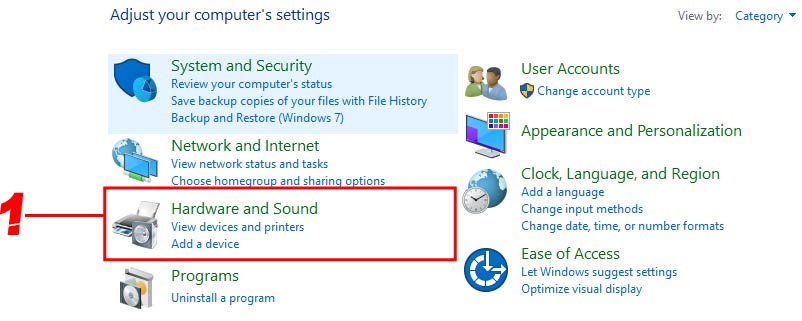
- Open Hardware and Sound. Right-click the speaker icon in the bottom-right corner of your taskbar and select "Sounds." You can also reach it through Control Panel → Hardware and Sound. Either path lands you in the same Sound control panel.
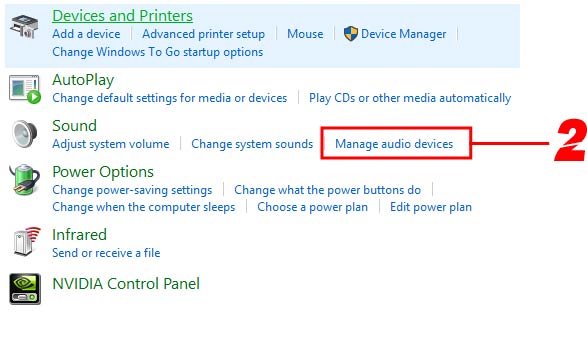
- Click "Manage audio devices." This opens a new window with tabs for Playback, Recording, Sounds, and Communications. You'll be working primarily in the Recording tab for the next few steps.
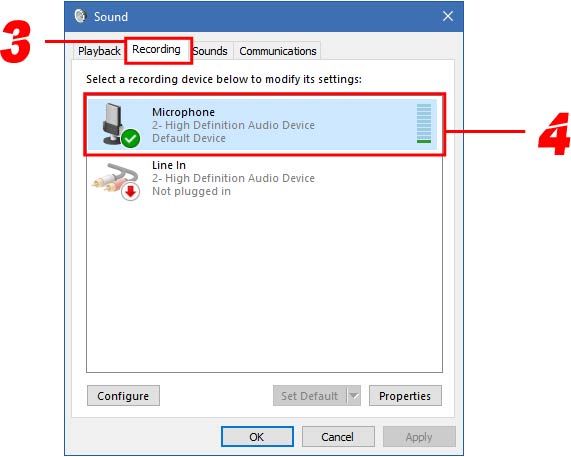
- Click the Recording tab, then double-click "Microphone." You'll see a list of available input devices. If your headphones aren't visible, right-click anywhere in the blank area of the list and select "Show Disabled Devices." Once your device appears, double-click it to open the Microphone Properties panel.
Steps 4–7: Configuring Your Mic Input
- Check the General tab. Confirm the device status reads "This device is working properly." If it says "Disabled," click Enable. This is the single most common reason headphone mics don't show up — Windows disables them by default when no audio signal has been detected.
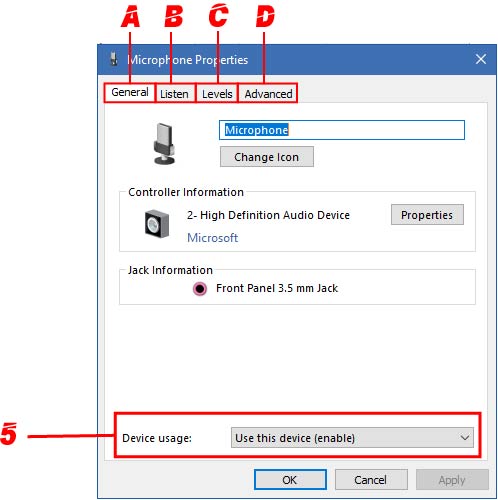
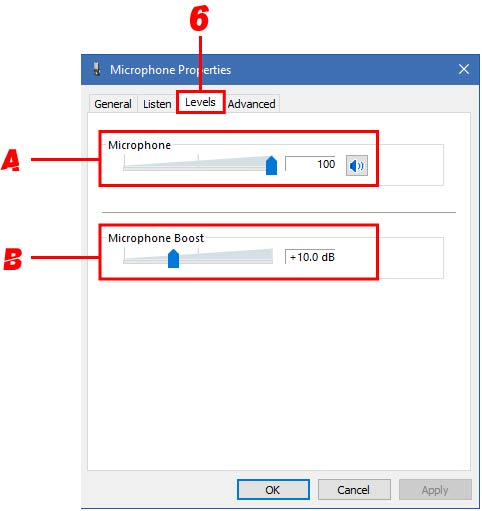
- Set your Levels. Click the Levels tab. Set Microphone volume to 80 as a starting point. If your voice sounds too quiet during test recordings, add Microphone Boost at +10.0 dB. Be careful — too much boost introduces static and distortion that can't be cleaned up after the fact.
- Configure the Advanced tab. Under Default Format, select "1 channel, 16 bit, 44100 Hz (CD Quality)." This balances voice audio quality with low CPU load, keeping your system responsive during gaming sessions or long calls. Higher sample rates don't improve voice clarity — they just increase file size and processing overhead.
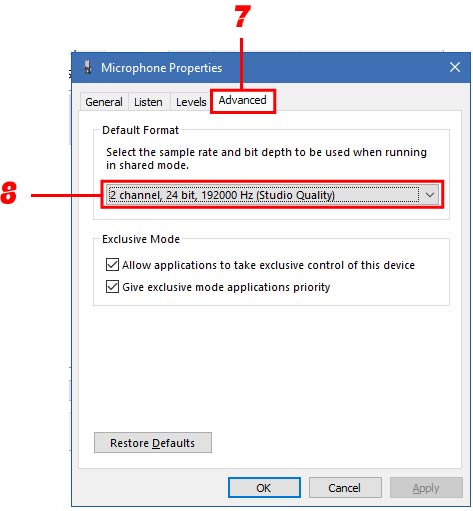
Pro tip: While you're on the Advanced tab, uncheck "Allow applications to take exclusive control of this device" — this prevents apps like Discord from locking other programs out of your mic at the same time.
- Click Apply, then OK. Your settings are saved. Your headphones are now active as a recording device in Windows, and any app that uses a microphone will see them as an input option.
When Using Headphones as a Mic Makes Sense
Knowing how to use headphones as mic is the first step. Knowing when it's the right call — and when it isn't — is what actually improves your results. Here's an honest breakdown of both scenarios.
Gaming, Streaming, and Content Creation
For gaming, your headphone mic is more than capable. Most online games route voice through Discord, in-game chat, or platform party systems — and all of them compress audio anyway, so quality differences are barely noticeable to your teammates.
- Casual multiplayer: Discord, Steam Voice, Xbox Game Bar, and PSN party chat all work perfectly with a headphone mic
- Entry-level streaming: pair with free noise-suppression tools like NVIDIA RTX Voice or Krisp to filter room noise before it hits your stream
- Quick recordings: voice memos, gameplay commentary drafts, rough podcast takes — all fine for non-final use
- Video content: acceptable for B-roll narration and casual YouTube videos where audio isn't your primary value proposition
Remote Work and Video Calls
For remote work, a properly configured headphone mic handles nearly everything you'll face in a standard week. Modern video conferencing apps — Zoom, Microsoft Teams, Google Meet — all include built-in noise suppression, echo cancellation, and auto-gain correction that compensate for lower-quality mic input.
- Daily team standups: completely adequate for clear, natural conversation
- One-on-one client calls: fine in a quiet room with minimal background noise
- Recorded webinars or interviews: acceptable for occasional use, but a dedicated USB mic delivers noticeably better results for regular production
Important: Room acoustics affect your audio far more than the mic itself. A headphone mic in a quiet, carpeted room sounds significantly better than an expensive studio mic in a bare, echo-heavy space.
One thing to watch for: if you hear your own voice playing back through your headphones during calls, that's called sidetone — not a malfunction. Our guide on hearing your own voice in a headset explains exactly what sidetone is and how to adjust or turn it off completely.
Beginner Tips and Advanced Settings for Better Audio
Getting your headphones recognized as a mic is step one. Getting them to actually sound good takes a bit more attention. Here's what works at every skill level.
Quick Fixes for Beginners
- Test your mic after every change. Go to Windows Settings → System → Sound → Input and speak while watching the input level bar. If the bar doesn't move, your device isn't selected as the default recording device.
- Right-click your headphone entry in the Recording tab and select "Set as Default Device" — this tells Windows which mic to prioritize when multiple devices are connected.
- Speak about six inches from the mic. Most headphone mics are omnidirectional (they pick up sound from all directions equally), so distance matters more than angle.
- Close apps you aren't using. Some applications lock mic access and prevent other software from using the same input at the same time.
- Restart your PC after saving new settings if your apps still reference the old configuration — a reboot forces all software to re-read device defaults.
Advanced Tweaks for Better Quality
Once the basics are dialed in, these adjustments push your audio quality further without requiring any new hardware:
- Disable Windows audio enhancements — go to the Enhancements tab in Microphone Properties and uncheck all boxes. Windows applies these processing effects for music playback; they typically degrade voice clarity and add an unnatural hollow quality.
- Apply a noise gate (a filter that cuts all audio below a set volume threshold, eliminating background hiss and keyboard click noise) in OBS Studio or Voicemeeter Banana — both are free and widely supported.
- Use Audacity to record a 30-second test clip and inspect the waveform. Good recordings show consistent peaks that never hit the top rail of the waveform. Clipping (peaks that flatten at the top) means your levels are too high.
- Experiment with Microphone Boost at 0 dB first. Some sensitive mics actually produce cleaner audio with no hardware boost and a higher software gain applied inside your recording app or DAW.
- For music or instrument recording through your headphone mic, switch to "2 channel, 24 bit, 48000 Hz" in the Advanced tab for additional dynamic range and headroom.
Frequently Asked Questions
Can any headphones be used as a mic on PC?
Not all headphones support mic input. Your headphones need a built-in microphone and either a TRRS 3.5mm connector (four contact points on the plug) or a USB connection. Standard TRS headphones with three contact points carry stereo audio only — there's no mic channel. Check your headphone's spec sheet or count the bands on the plug tip before attempting to configure it as a mic.
Why can't my PC detect my headphone mic?
The most common causes are a disabled device in Windows, a TRS-only connector without mic support, or a headset plugged into the wrong port on a desktop PC. Open the Recording tab in Sound settings, right-click in the blank area, and select "Show Disabled Devices" to reveal hidden inputs. On desktops, confirm you've plugged into the pink mic-in port — not the green audio-out port.
Is a headphone mic good enough for streaming?
For beginner or casual streaming, yes. Pair it with free noise-suppression software like NVIDIA RTX Voice or Krisp and your audio will be clean enough for most viewers. For professional streaming or regular podcast production where audio quality is a core part of your brand, a dedicated USB microphone delivers consistently better results and gives you more control over your sound.
How do I use headphones as mic on PC without an adapter?
If your headphones use a single TRRS 3.5mm plug and your laptop has a combo audio port, you plug in directly — no adapter needed. If your PC has separate audio and mic ports, you need either a headset with two separate plugs (connect the mic plug to the pink port) or a TRRS-to-dual-TRS splitter adapter that splits the single plug into two separate connections.
Next Steps
- Plug in your headphones right now and follow the seven steps above to enable and configure your mic input in Windows Sound settings.
- Record a 30-second voice clip in Audacity (free download) and listen back to evaluate your actual audio quality before making further adjustments.
- Test your mic inside your main communication app — Discord, Zoom, or Teams — and ask someone else to confirm how you sound on their end.
- If background noise is a problem, download NVIDIA RTX Voice or Krisp (both free) and enable noise suppression before your next call or gaming session.
- Browse our headphone buying guides if you're ready to upgrade to a headset with a dedicated boom mic for consistently better audio quality across every use case.


About Simon B.
Simon here is an audiophile that loves to try out new audio equipment and loves to listen to different genres of music. Being an active student of Audio Electronics, He is more than capable of discussing different elements of headphones. A Powerful Music Can Change The Tone Of Your Heart, That Is The Real Power Of Music.
Get FREE Headset Gifts now. Or latest free Music Guide from our best collections.
Disable Ad block to get all the secrets. Once done, hit any button below